How to View All Firewall Rules Applied to a Droplet
Validated on 4 Sep 2019 • Last edited on 13 Jan 2026
DigitalOcean Cloud Firewalls are a network-based, stateful firewall service for Droplets provided at no additional cost. Cloud firewalls block all traffic that isn’t expressly permitted by a rule.
To see the firewall rules currently applied to a Droplet, click the Droplet’s name, then visit its Networking page which is linked in the left-hand menu.
When you haven’t applied any firewalls to the Droplet, the page displays a message saying as much and provides a Manage Firewalls button, which leads directly to the firewalls overview page.
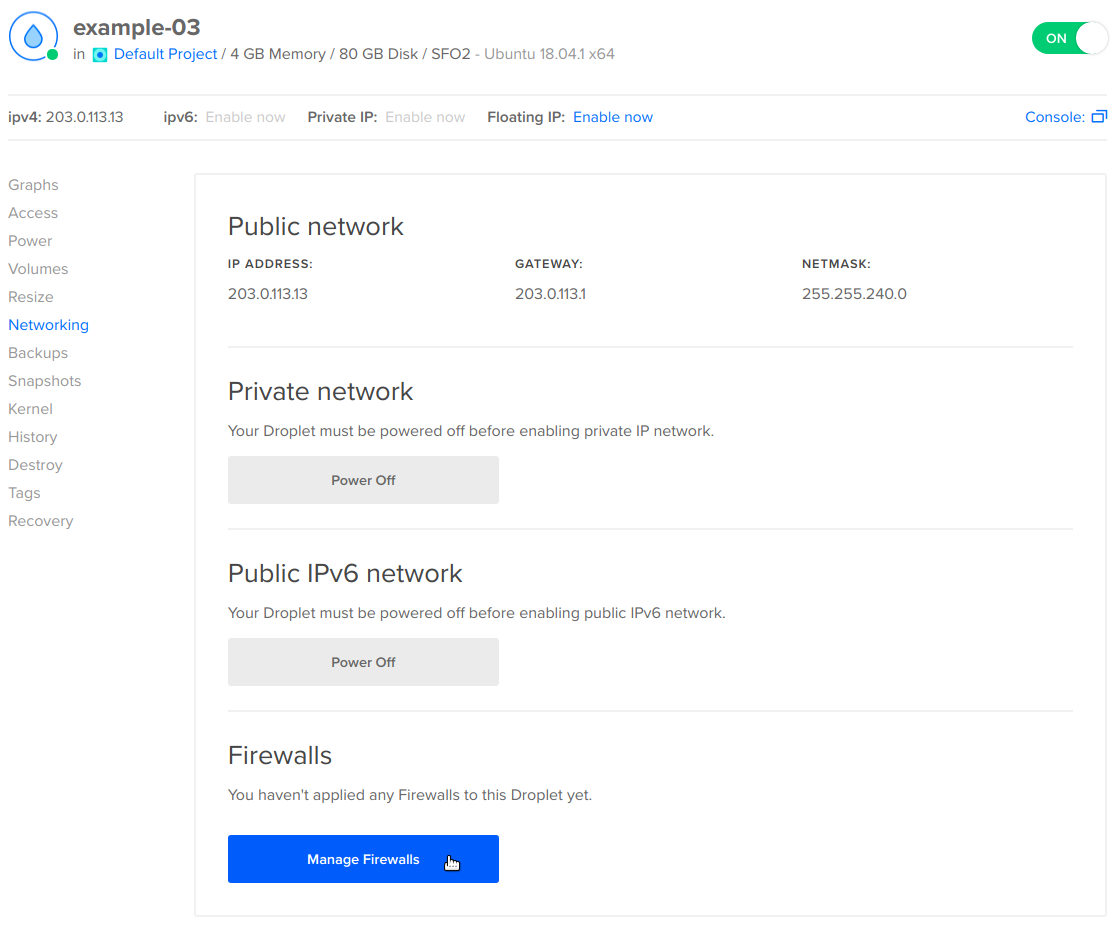
With at least one firewall applied to the Droplet, the firewall’s name appears below the Firewalls section header, followed by its Inbound and Outbound rules.
When you’ve applied more than one firewall to the Droplet, the name of each firewall appears under the Firewalls header, and the union of all of the Firewalls’ rules is displayed:
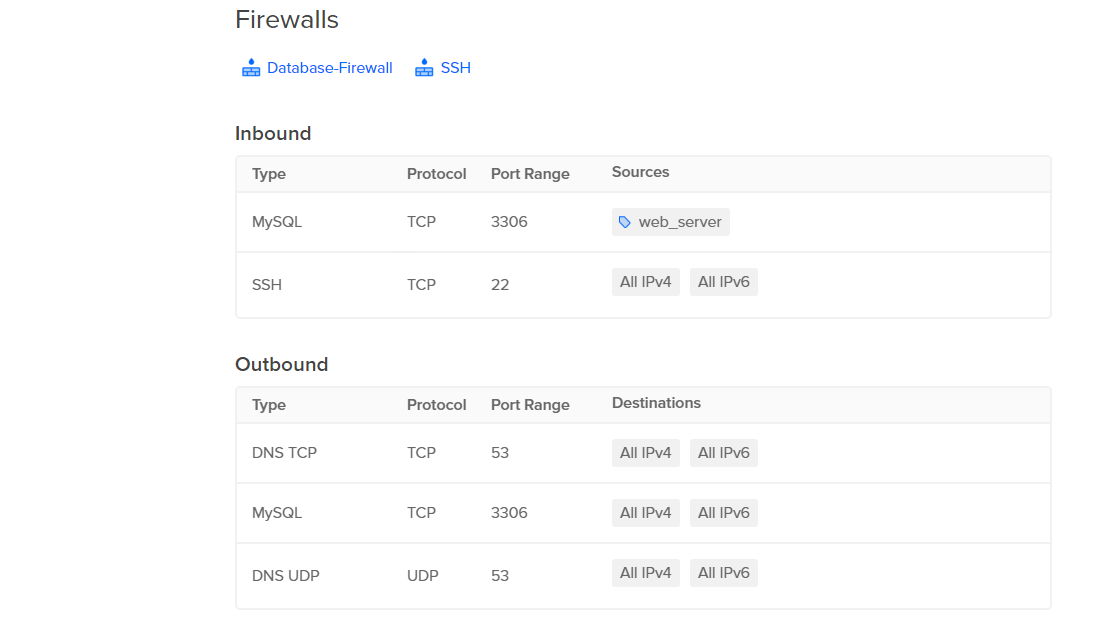
You can click any Firewall’s name to configure the firewall’s rules.